Limited time-period offer.
{ 0 comments }
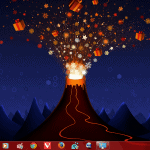
Less than a week to go for happy holidays so we thought why don’t we give away yet another great Windows 7 goodie this Christmas season. A few days back we gave you Christmas 2010 Windows 7 Theme and you did like it a lot. This time we bring you Santa Claus theme for Windows 7 loaded with high resolution wallpapers. Download this Windows 7 theme and share it with your friends. Please don’t hotlink to the file (Santa won’t like it you see). Share this page’s URL instead.
Download Santa Claus Windows 7 theme
Wallpaper Credits: Crestok, HDWalls, dA
Don’t miss this another Christmas 2010 themepack:
{ 3 comments }
Oh times fly so fast. I still remember the time we published Christmas Themes and Wallpapers last year as if it were yesterday. But the festival is back and we, too, are back with some really beautiful, handpicked and high-resolution wallpapers packed into a Windows 7 theme. The preview below will definitely make you click that download link for sure. ;) I won’t say anything further. Credits fly out to the wonderful designers. If you do share the themepack, please do not hotlink. Use the link to his post instead.

Download Christmas 2010 Windows 7 Themepack
Wallpapers included can be found here.
Don’t miss the LATEST Santa Claus Windows 7 Theme:
Happy Christmas!
{ 7 comments }
![Windows 7 Service Pack 1 RC [Download] Windows 7 Service Pack 1 RC [Download]](http://techexplorer.dpix.netdna-cdn.com/wp-content/themes/thesis_18/images/default.png)
As we told you earlier, Windows 7 SP1 brings nothing drastic to the system. It’s just a collection of minor bug-fixes that were released over previous months. The Windows Server 2008 SP1 has 2 new features – Dynamic memory and Remote FX, as decided. The final version of SP1 is expected to arrive in the first quarter of 2011.
PS: The installer performs genuine validation prior to SP1 installation.
Download Windows 7 Service Pack 1 & Windows Server 2008 R2 Service Pack 1 [Release Candidate]
{ 0 comments }
Microsoft 
In our previous post, we discussed the some of the features of IE9 like the ability to pin web apps on the Windows 7 taskbar. This new feature will enable developers to make web-apps (or should I say, a special version of the site) that can be pinned to the taskbar with functions accessible using jumplists.
Internet Explorer 9 is claimed to be developed from scratch and offers full support to HTML5 and CSS3 technologies along with DirectX based GPU graphics rendering for HTML5 content.
As far as the UI goes, IE9 looks pretty classy. If you have noticed, Windows 7 taskbar buttons take the color theme of the application icon which looks very aesthetic and also helps distinguishing buttons. You will see similar effects in the ‘Forward’ and ‘Back’ buttons of the new IE9. The theme-ing is based on the colors of the favicon.
Microsoft will has released the first IE9 Beta along with IE9 ready apps like: CNN, eBay, Hulu, ZDNet, Amazon and IMDB. [images courtesy:ZDNet]
{ 1 comment }
I still remember the time when the first Vista transformation pack was made available for XP and how I went so crazy to download a 31MB file on my dial-up connection. Well, Vista came and gone and even Windows 7 seems so 2009. We need something new, don’t we? So here it is – The Vienna 5 Transformation Pack for Windows 7!
Now don’t ask me why the name Vienna. It’s been one of the most speculated names for the next version of Windows after Vista but that didn’t happen. Maybe to pay a tribute, a deviantArt user, AppliArt named it Vienna 5 Transformation Pack.
Before I give out the download links, enjoy the screenshots:
This transformation pack is available for Windows 7 and Windows XP. Visit the below links and download the required version.
Download Vienna 5 Transformation Pack / 96.2 MB
After you download it, run an update available for it by clicking the below link.
Update for Vienna 5 Transformation Pack
{ 15 comments }
Beginner Quick-tip
Windows Media Player 12 is my favorite music player on Windows and it has evolved to a great extent. I have shown some WMP tricks in the past and today I am back again with yet another small trick that will enable / disable automatic preview of songs just by hovering over them. This small tip will work for Windows Media Player 12 that comes bundled with Windows 7.
» First, open up Windows Media Player 12. Click ‘Organize’ > ‘Options’.

» In the ‘Library’ tab, just check the option ‘Automatically preview songs on track title hover’. Press OK.

» Now you can preview songs just by taking your mouse pointer over the title of the song. A small pop-up will appear and the song will start playing immediately when you click ‘Preview’. Moving your mouse away will stop the preview.

Enjoy previewing songs
{ 0 comments }